
How to Test CS2 Skins for Free (2026)
Counter-Strike 2 skins can cost anywhere from a few cents to thousands of euros, and the worst part is that the marketplace image almost never looks the same as it does in-game. Lighting, wear (float), pattern, and sticker placement all change the final result enormously. The good news: you can preview any skin for free, even ones you don't own, before spending a single euro.
In this guide we go over the three methods that work in 2026, from the simplest to the most complete.
Important note: "testing" here means previewing. These methods let you view the skin in high resolution, rotate it, and check its details, but they don't give you the skin to use in real matches. It's a showcase preview, not a way to get free skins.
Method 1: Inspect from your inventory or the Steam Community Market
This is the official method: fast and with nothing extra to install. Ideal for viewing a specific skin that's listed on the market or that you already own.
- Open CS2 and minimize it (Alt + Tab).
- Go to the Steam Community Market (or any player's inventory) and find the skin.
- Click the "Inspect in Game" button.
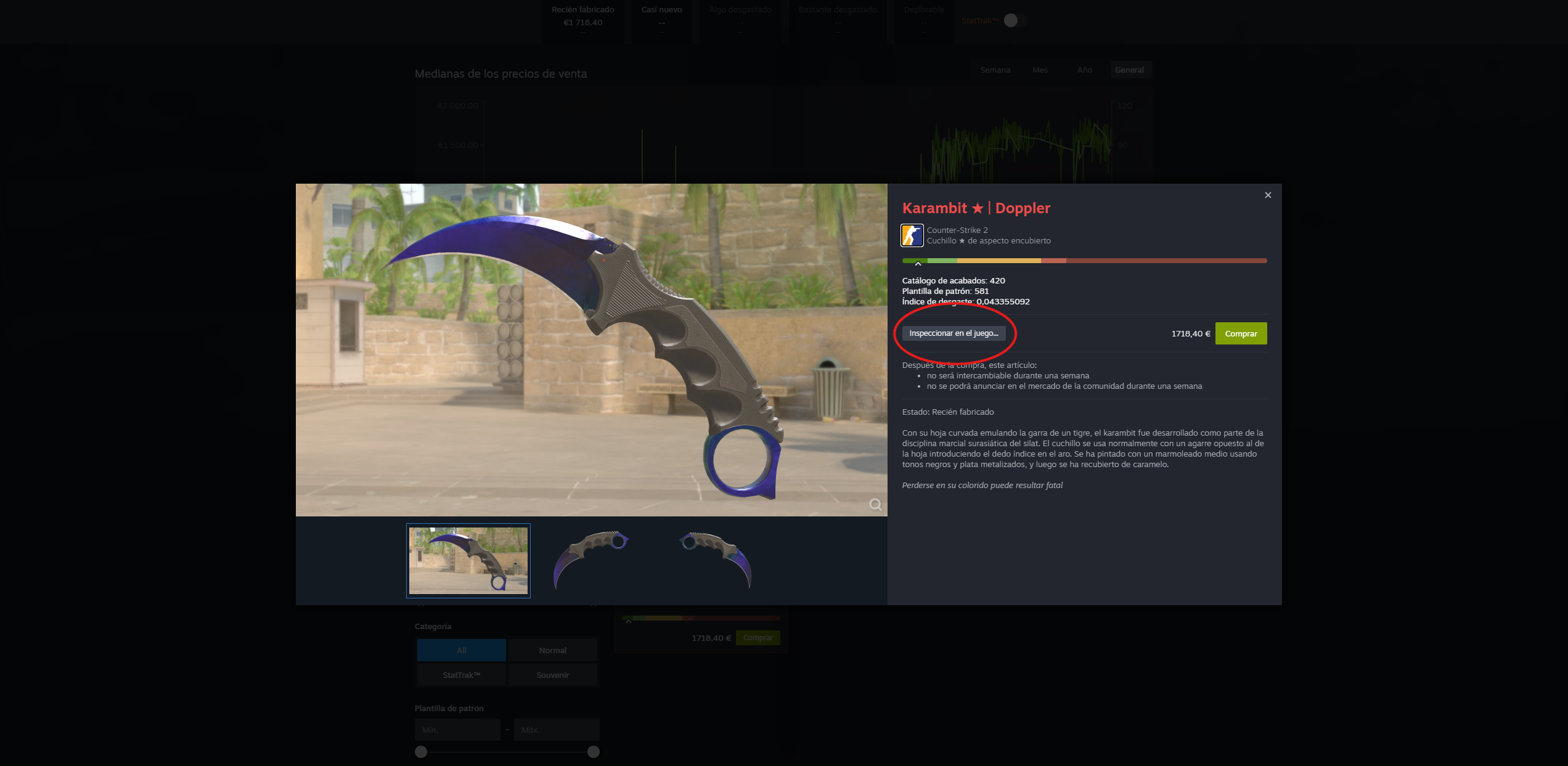
- Switch back to CS2: the skin will appear in the inspection view, where you can rotate it and zoom in to check the wear and stickers.
You can also copy the inspect link (right-click "Inspect in Game" → "Copy Link Address"). These links start with steam://rungame/730/... and, when opened, Steam launches the game and loads the skin automatically.
Limitation: this method only shows skins that already exist and are listed. If you want to test a combination that no one owns (your own craft with stickers), you'll need Method 3.
Method 2: Web viewers (no need to open the game)
If you just want a quick look from your phone or browser, there are tools that show a 3D model of the skin without needing CS2 installed. They're usually free and don't require logging in.
The process is always the same: you copy an inspect link (from the Steam Market or any marketplace) and paste it into the viewer. The site shows you the 3D model, the exact float, the paint seed, and the sticker wear.
It's the most convenient option for comparing two "Factory New" skins that, despite carrying the same label, can look very different depending on their float.
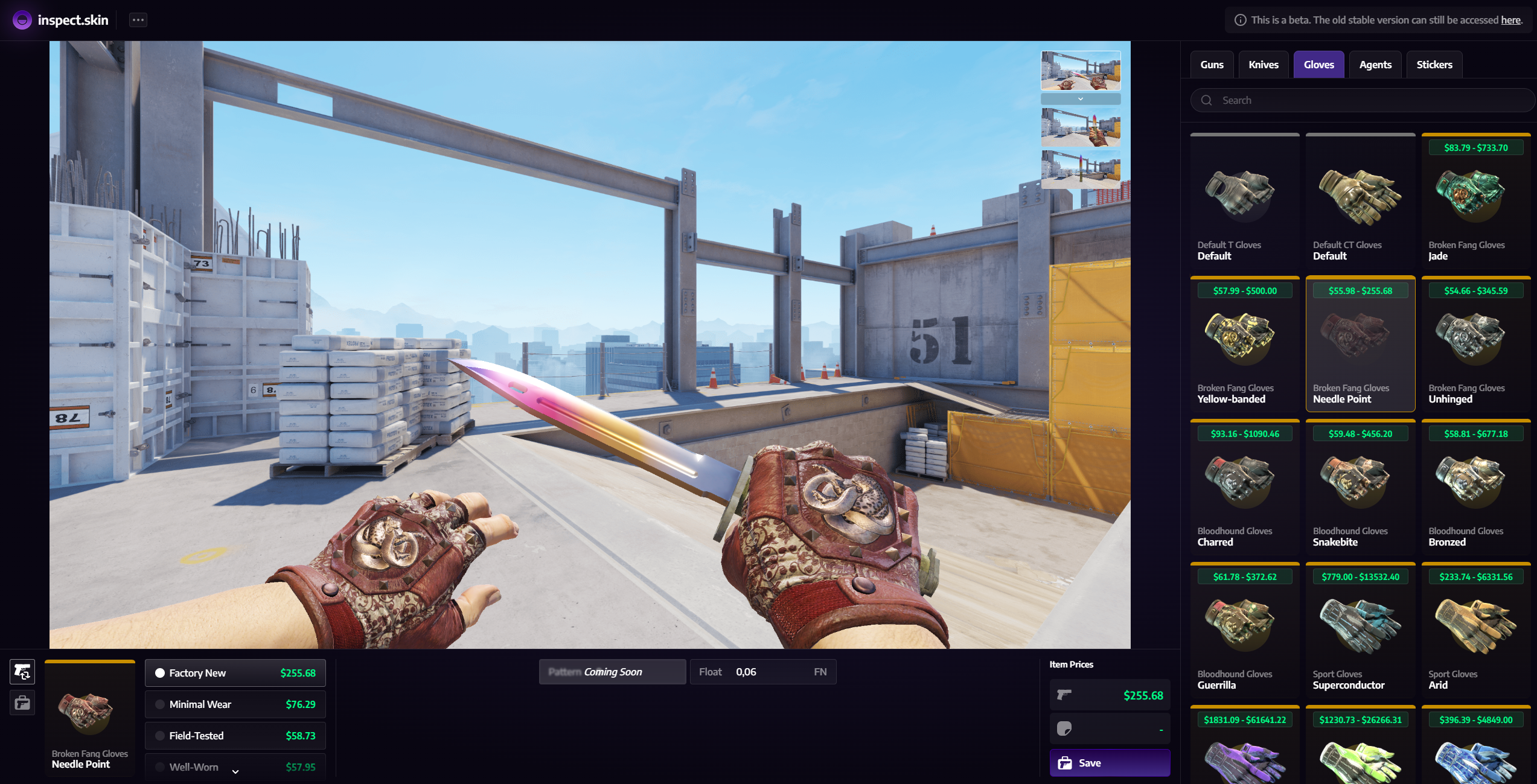
Note: the specific names of these sites change over time. Search for "CS2 skin inspector" and prioritize the ones that work just by pasting the link, without asking you to log in with Steam.
Method 3: Inspect servers + craft generator (the complete method)
This is the real "CS2 Inspects": it lets you load any skin, knife, glove, or sticker craft you don't own, onto your own character and with the real lighting of a map. It's what traders and content creators use.
It works in two parts: you generate a code with the combination you want, and then load it on an inspect server.
Step 1 — Enable the console
In CS2, go to Settings → Game → Enable Developer Console (~) and set it to Yes. After that, you can open it in-game by pressing the ~ key (tilde, above Tab).
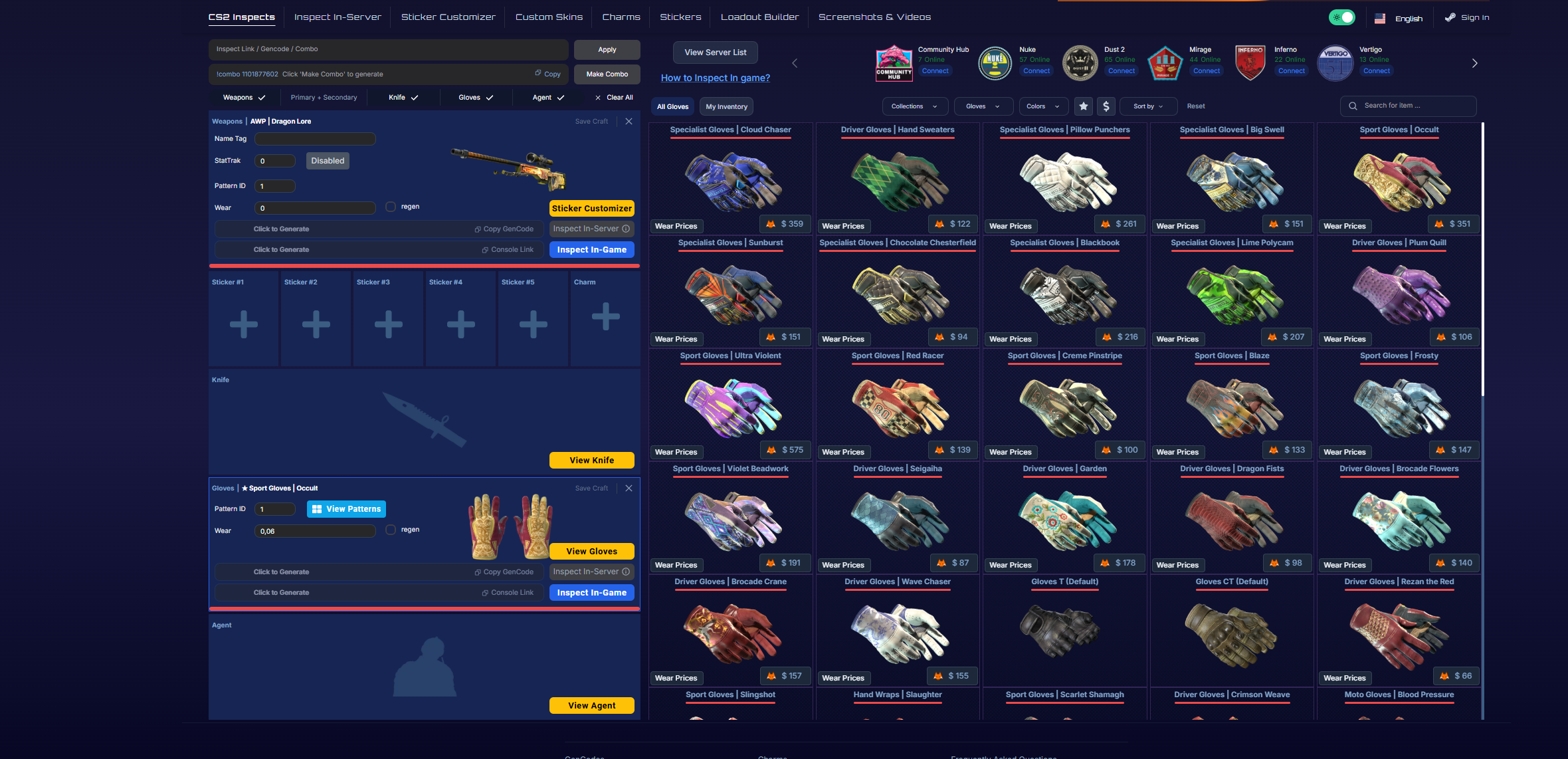
Step 2 — Generate your skin code
Go to a craft generator (the best known is cs2inspects.com; there's also the csinspect craft generator). There you choose the weapon, the skin, the float, the pattern, and, if you want, add stickers and charms by moving them around as you like. Once you have it set up, hit Generate and copy the resulting code, which usually starts with !g or !gen.
Step 3 — Connect to an inspect server
Open the console (~) and connect to a public inspect server with:
connect [server_IP]The Epidemic servers are the most popular for this (for example, addresses like connect vertigo.epidemic.gg). Keep in mind that IPs change, so it's worth checking the current address before copying it.
Step 4 — Load the skin
Once inside the server, open the in-game chat and paste your code:
- For your own craft that you generated: paste the
!gen ...(or!g ...) code. - For a skin that already exists (from an inspect link): use
!i [inspect_link].
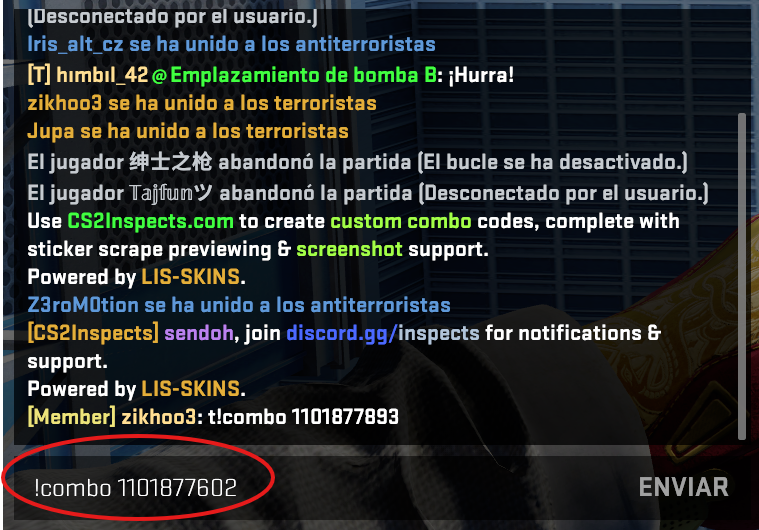
The server will instantly load that exact skin onto your model, with its real float, pattern, stickers, and lighting. Now you can see it in motion as if it were yours.
Tip for knives and gloves: if the knife model doesn't appear, switch to the Terrorist side and try again. Gloves only show when you inspect the knife, because they're part of the character model: equip the knife first, then inspect.
Bonus: commands for clean screenshots
If you want to take advantage of the preview to take showcase screenshots (for your loadout, social media, or your own blog), these console commands help a lot. Most require an offline server or one with cheats enabled (sv_cheats 1):
cl_drawhud false        // hides the interface (HUD)
cl_lock_camera true     // locks the camera so you can zoom in without moving
For a cinematic blurred background (depth of field), a combination of r_dof_override commands is typically used. Combined with the third-person camera, you get very striking shots without editing the image afterward.
Quick glossary
- Float (wear): a value from 0 to 1 that marks how "worn" the skin looks. The lower it is (close to 0.01), the cleaner and sharper; this usually makes the skin more expensive. Two "Factory New" skins can look different depending on their float.
- Paint seed (pattern): a number that determines how the design is distributed across the weapon. On some skins, certain patterns (like blue gems) are worth much more.
- Inspect link: an address that points to a specific skin in an inventory or on the market. It's what you paste into viewers and servers.
Safety tips
- Don't log in with Steam on skin sites you don't know. Previewing never requires you to hand over your credentials: if a page asks for a Steam login just to "view" a skin, be suspicious.
- If an inspect link won't load, the game may be updating or CS2's services may be overloaded (common during a Major or a new operation). Status pages like SteamStat.us tell you whether the service is running normally.
- Remember: these methods are for testing and deciding before you buy. They don't give you the skin to play with; once you find the one you like, you'll have to acquire it on the market or unbox it from a case.
Sources: HLTV, Hotspawn, Steam community guides.